
FreeSurfer VPN on macOS
On a Mac your subscription works through Incy. There are two builds: for Macs with Apple Silicon (M1 and later) and for Macs with Intel.
Install the app
Download Incy for your Mac. You can see your chip under Apple menu → About This Mac.
Get a subscription
Sign up on the website or open the FreeSurfer bot in Telegram — the trial is free, no card needed. Under Devices, tap Add and choose macOS.
Turn on the VPN
Your account opens Incy and adds the subscription for you. Allow macOS to add the VPN configuration and turn the connection on.
First launch: let macOS open Incy
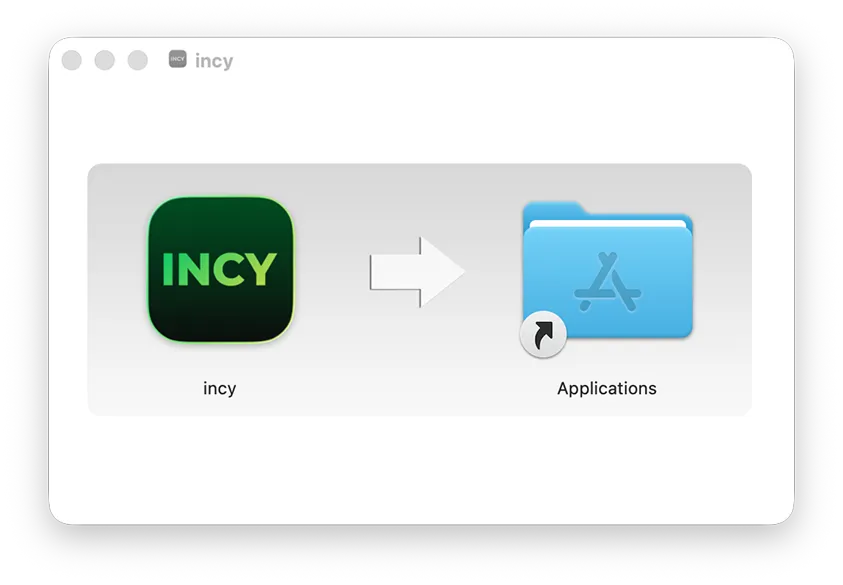
Drag Incy to Applications
Open the downloaded .dmg file and drag the Incy icon into the Applications folder.
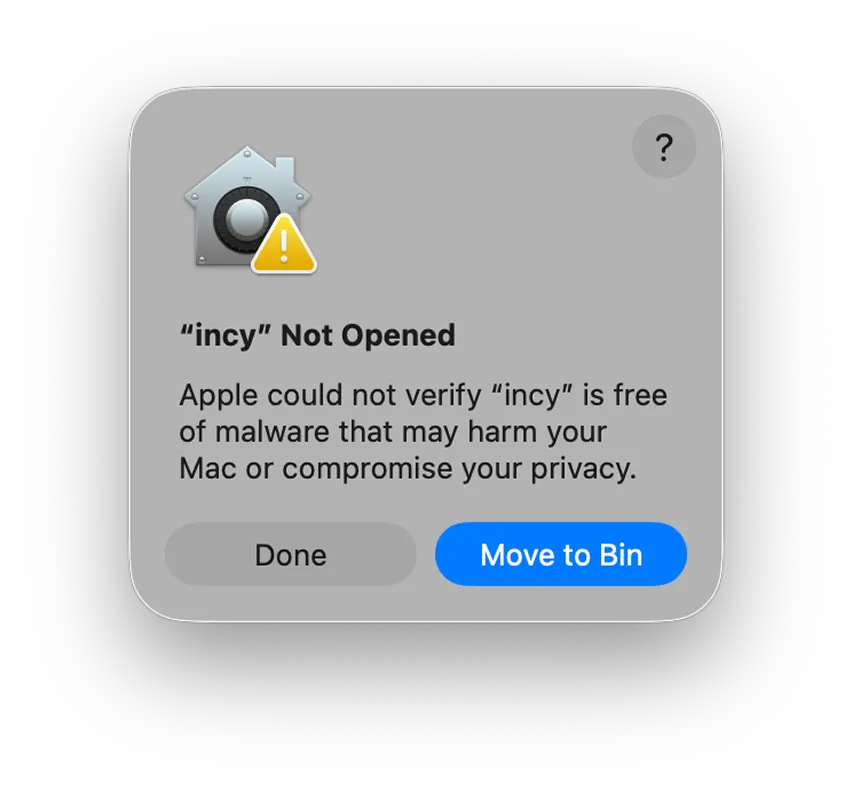
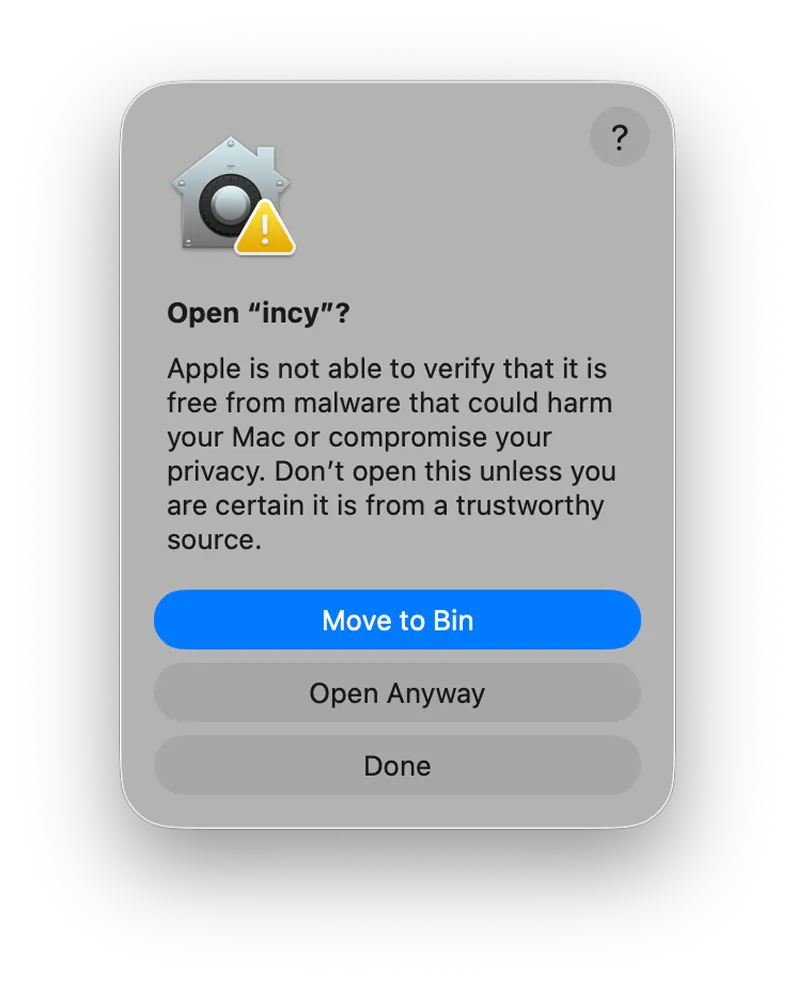
Launch Incy
If macOS shows a warning, click Done.
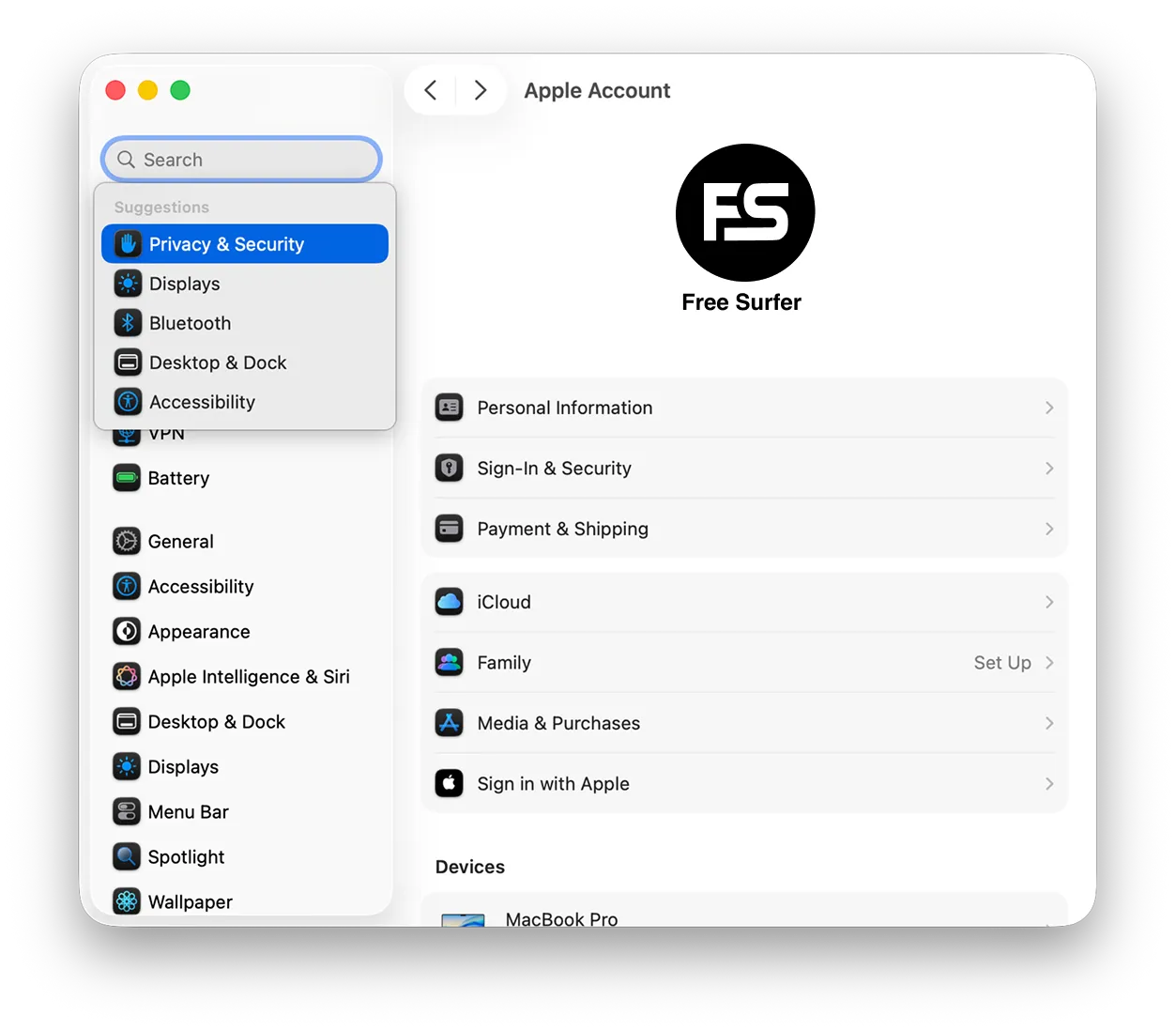
Open Privacy & Security
Go to System Settings → Privacy & Security.
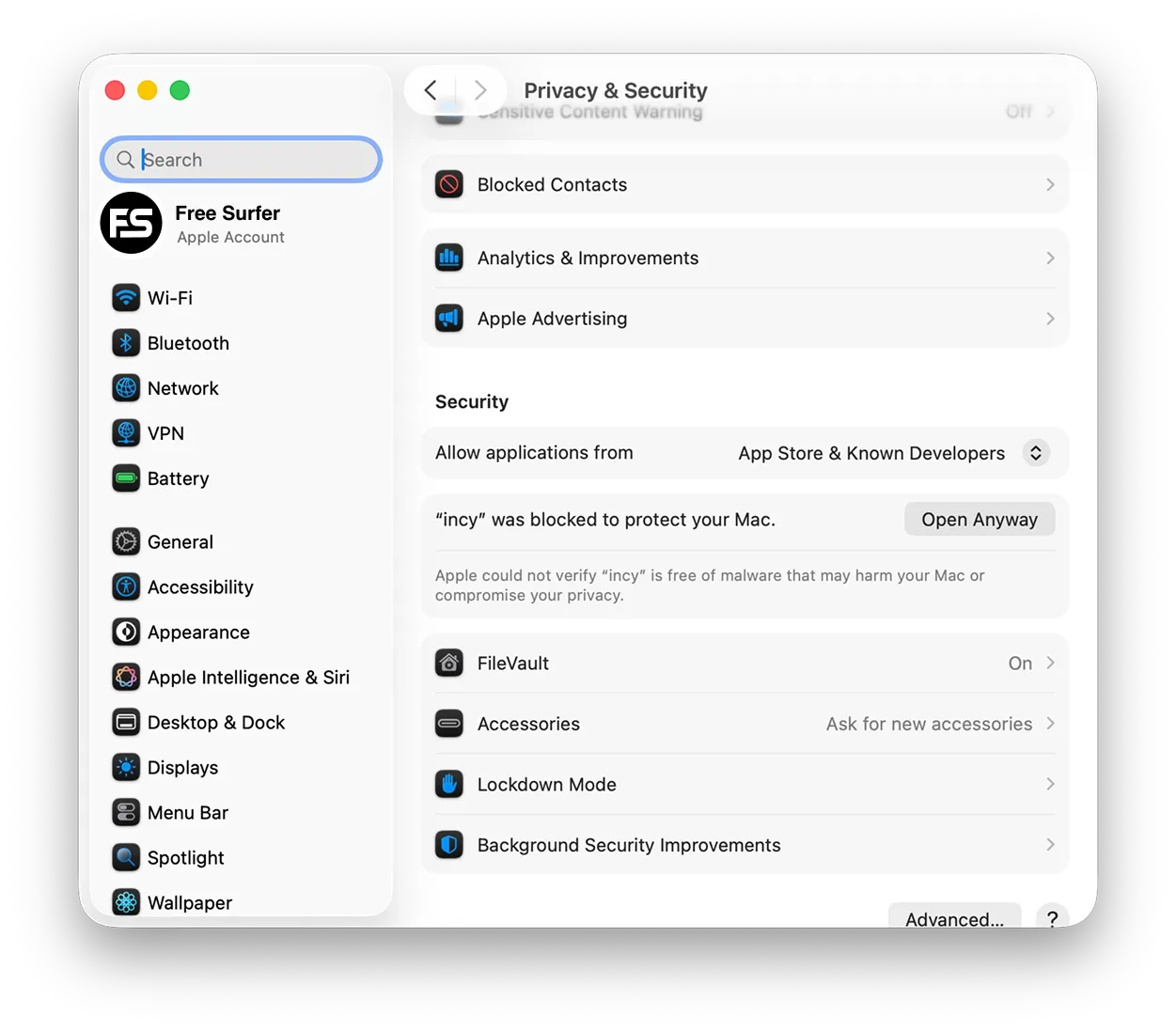
Click Open Anyway
Under Security, click Open Anyway next to the message about Incy.
Confirm
In the window that opens, click Open Anyway again.
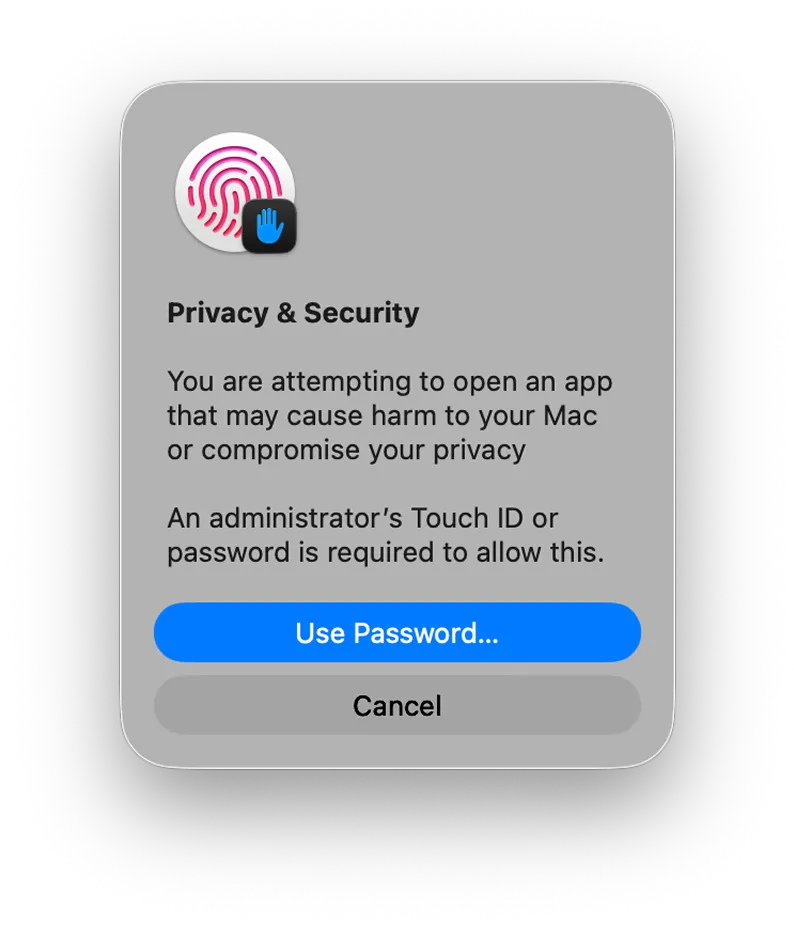
Enter your password or Touch ID
macOS asks you to confirm with your password or fingerprint. Done — Incy is open.
FAQ
Why won't macOS open Incy the first time?
That is how macOS treats apps from outside the App Store. You allow it once — see the steps above.
Which build should I download?
Apple menu → About This Mac: if the Chip line says Apple M1 or later, get the Apple Silicon build; if it says Intel, get the Intel one.